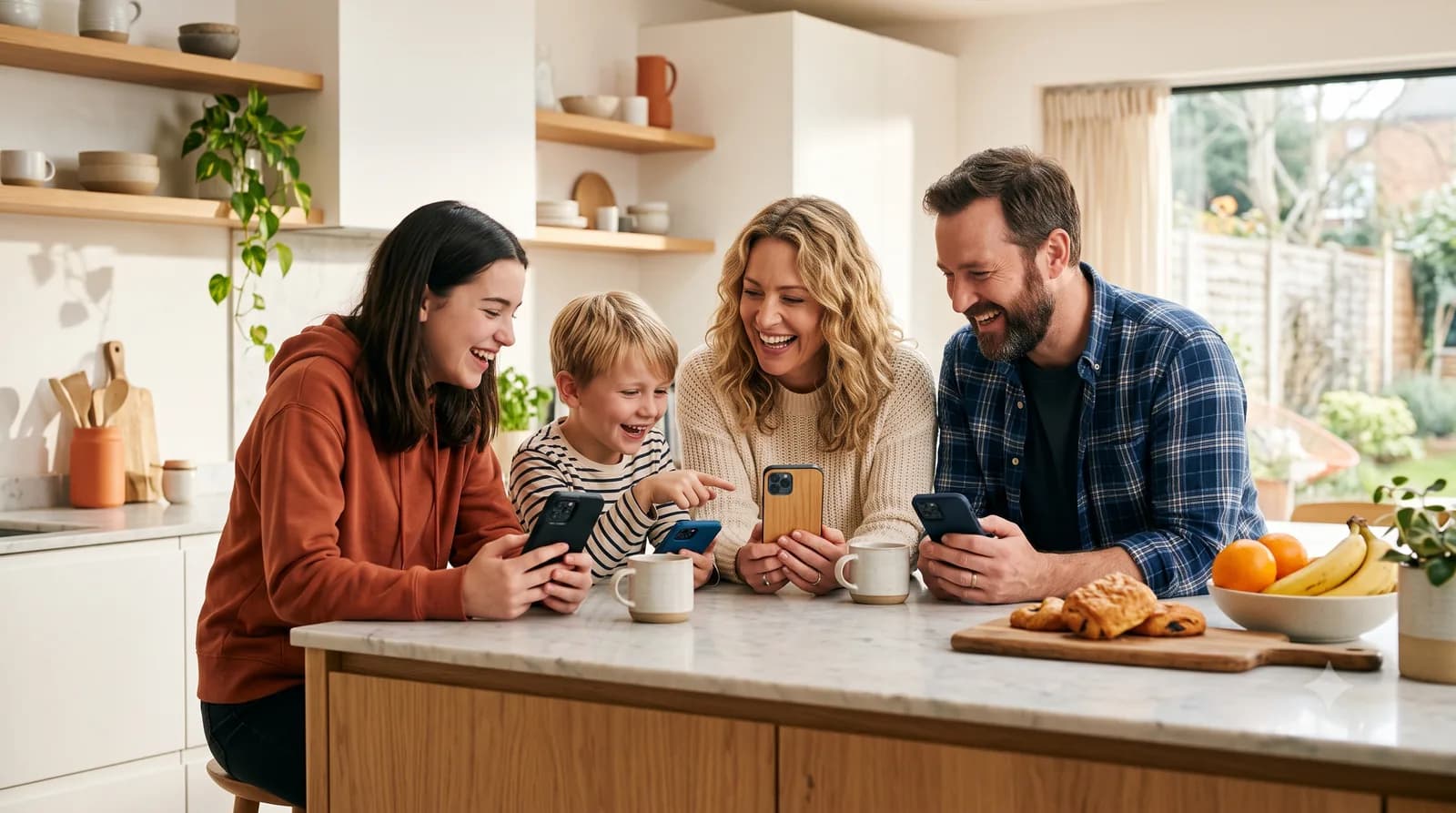
A mixed-device household can use one KIN family space without choosing one phone platform for everyone. The iPhone owner creates or manages the family, sends an invite, and the Android owner redeems the same six-character code.
There is one important boundary: KIN is a separate family calendar. It does not currently import or sync Apple Calendar, Google Calendar, Outlook, or another external calendar. Decide which family-facing plans belong in KIN and who keeps them current.
What We Tested
We reverified this workflow on August 15, 2026, using the current KIN iPhone and Android development builds in an iOS 26.5 simulator and a Pixel 7 Android 16 emulator:
- a signed-in iPhone family admin invited an unjoined member;
- a clean Android installation redeemed the iPhone-created code;
- both apps displayed the same family and members;
- a shared dinner created by the iPhone user appeared on Android; and
- a private therapy event and its linked private to-do remained visible to its owner on iPhone and absent for the Android family member.
These checks verify the tested app workflow. They do not promise instant delivery on every network, prove push-notification delivery, or replace reviewing a calendar entry before relying on it.
Step 1: Install KIN on Both Phones
Install KIN from the Apple App Store on the iPhone and from Google Play on the Android phone. Each person should use their own installation; they do not need matching Apple or Google accounts.
The person setting up the family should finish onboarding and sign in before inviting another member. KIN asks a guest family creator to sign in before an invite can be generated, which keeps family management tied to a recoverable account.
Step 2: Send the Invite from iPhone
On the iPhone:
- open the profile and settings sheet;
- select Manage Family;
- add the family member if that person is not already listed;
- tap Invite beside the member's name; and
- send the generated invitation using the iOS share sheet.
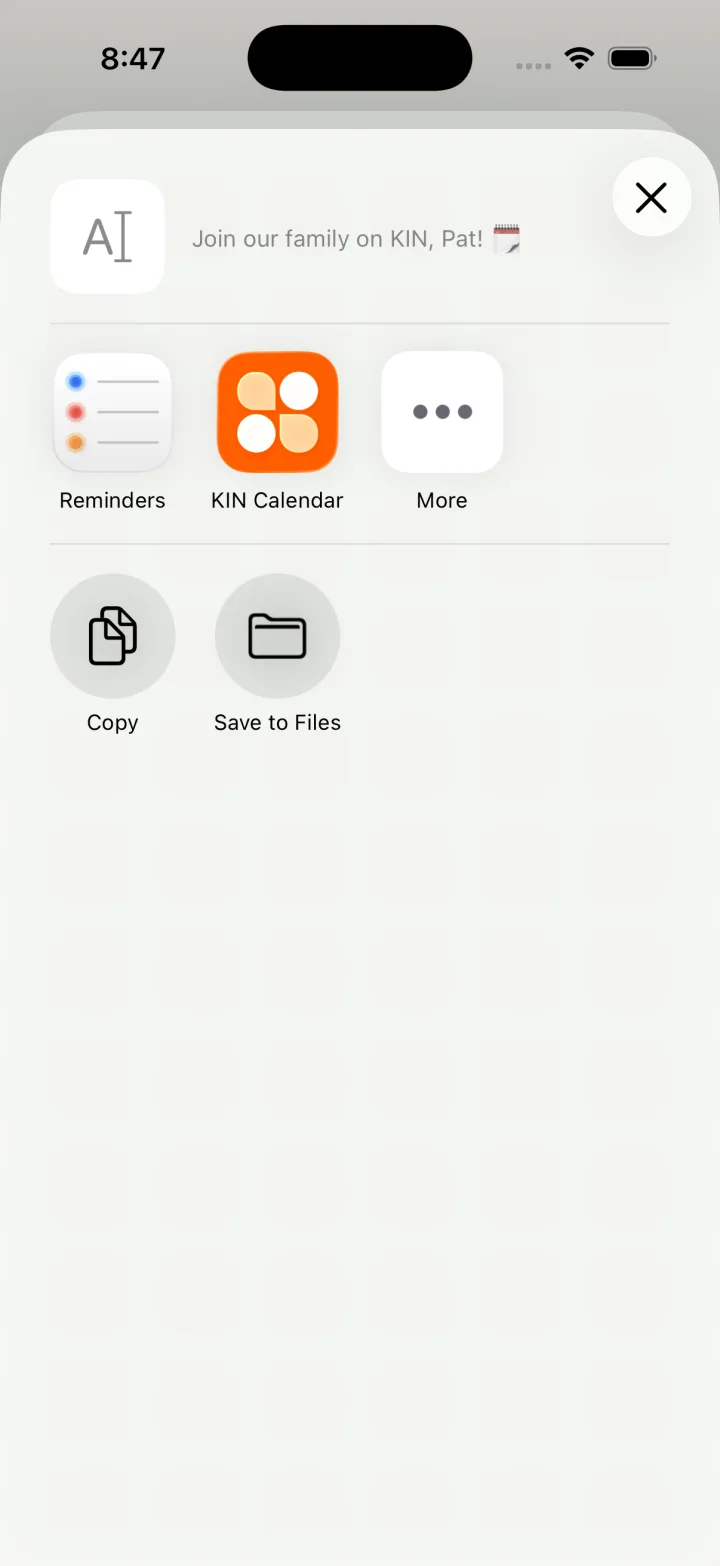
The share sheet can send the invitation through an app already available on the iPhone. Treat the code like a household invitation: send it directly to the intended person rather than posting it publicly.
Step 3: Join from Android
On a clean Android installation:
- open KIN and complete the introductory screens;
- tap Get Started and then I'm New Here;
- choose Have a Code;
- enter the six-character invite code;
- tap the verification button and continue; and
- finish the remaining onboarding choices, including microphone, notification, sign-in, and data-safety prompts.
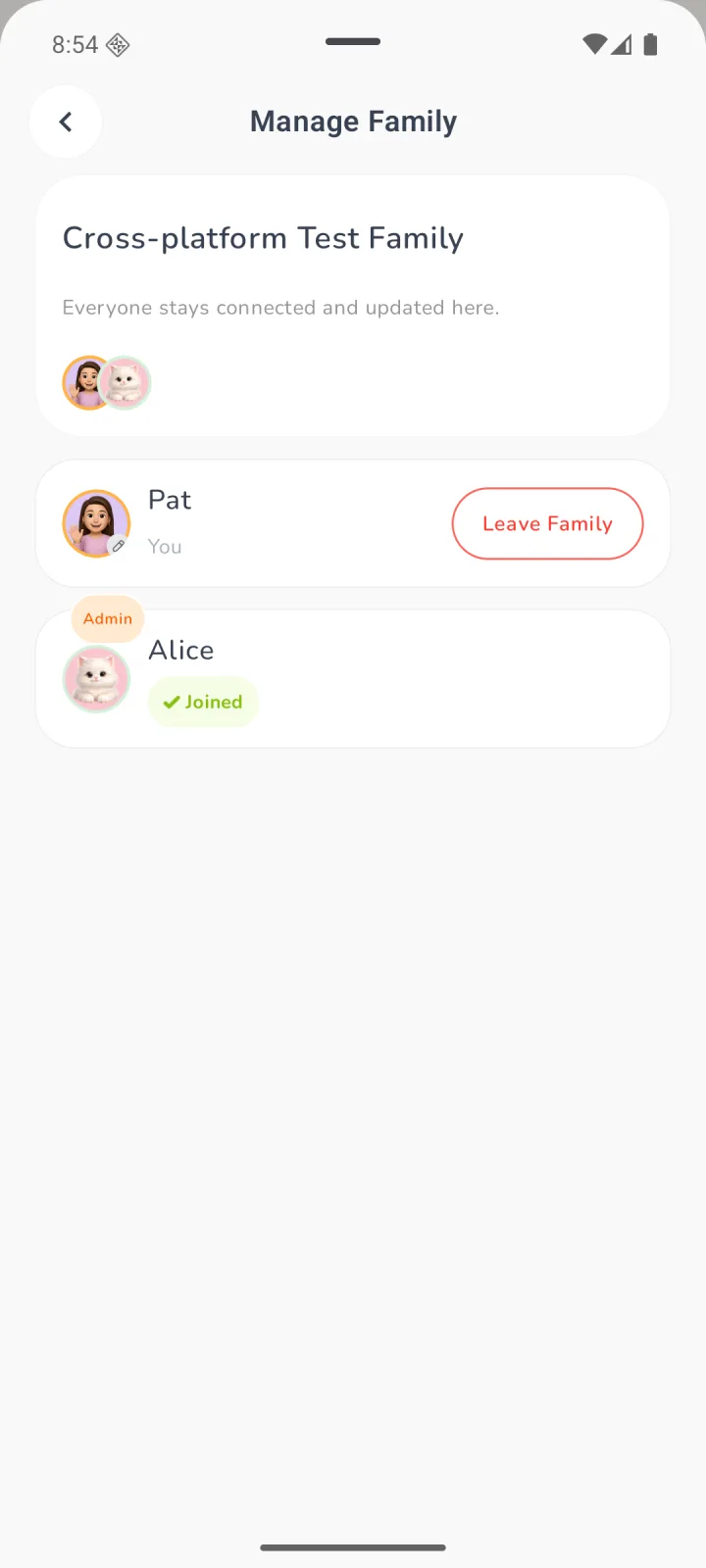
When joining succeeds, open Profile & Settings → Manage Family. The Android member should see the same family name and the inviting member marked as joined.
Step 4: Verify Shared Plans
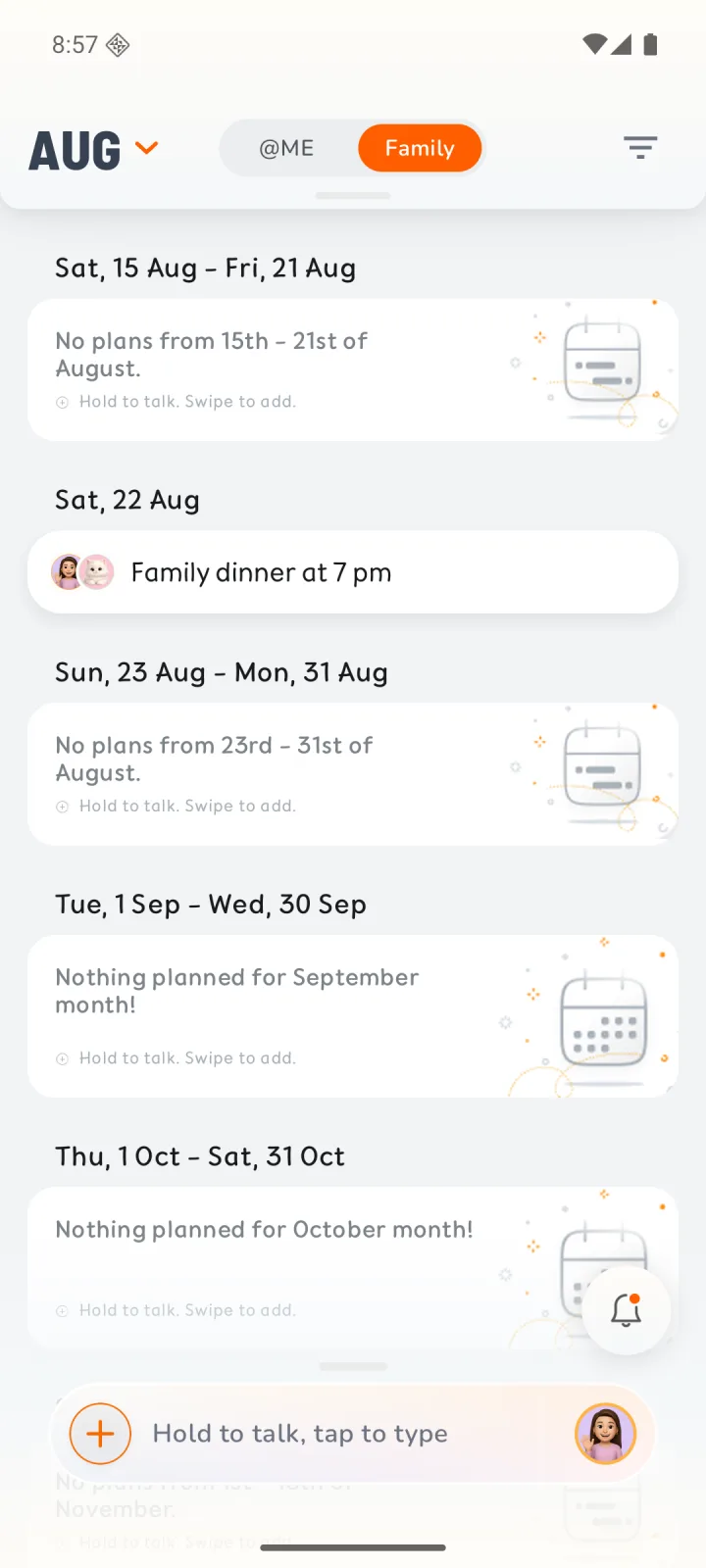
Create a low-risk test event before moving important logistics into KIN. We used a family dinner assigned to both members. The event appeared in the family timeline on iPhone and Android with both member avatars.
For your own test, verify:
- title, date, local time, and location;
- the family members assigned;
- whether recurrence is correct;
- any related reminder or to-do; and
- whether the entry is shared or private.
When KIN interprets a voice or typed request, review those details before relying on the result.
Step 5: Verify Privacy Separately
We created a private therapy event for the iPhone owner and a linked private to-do. Both appeared on the owner's iPhone with private indicators, while the Android member could see the shared dinner but neither private item.
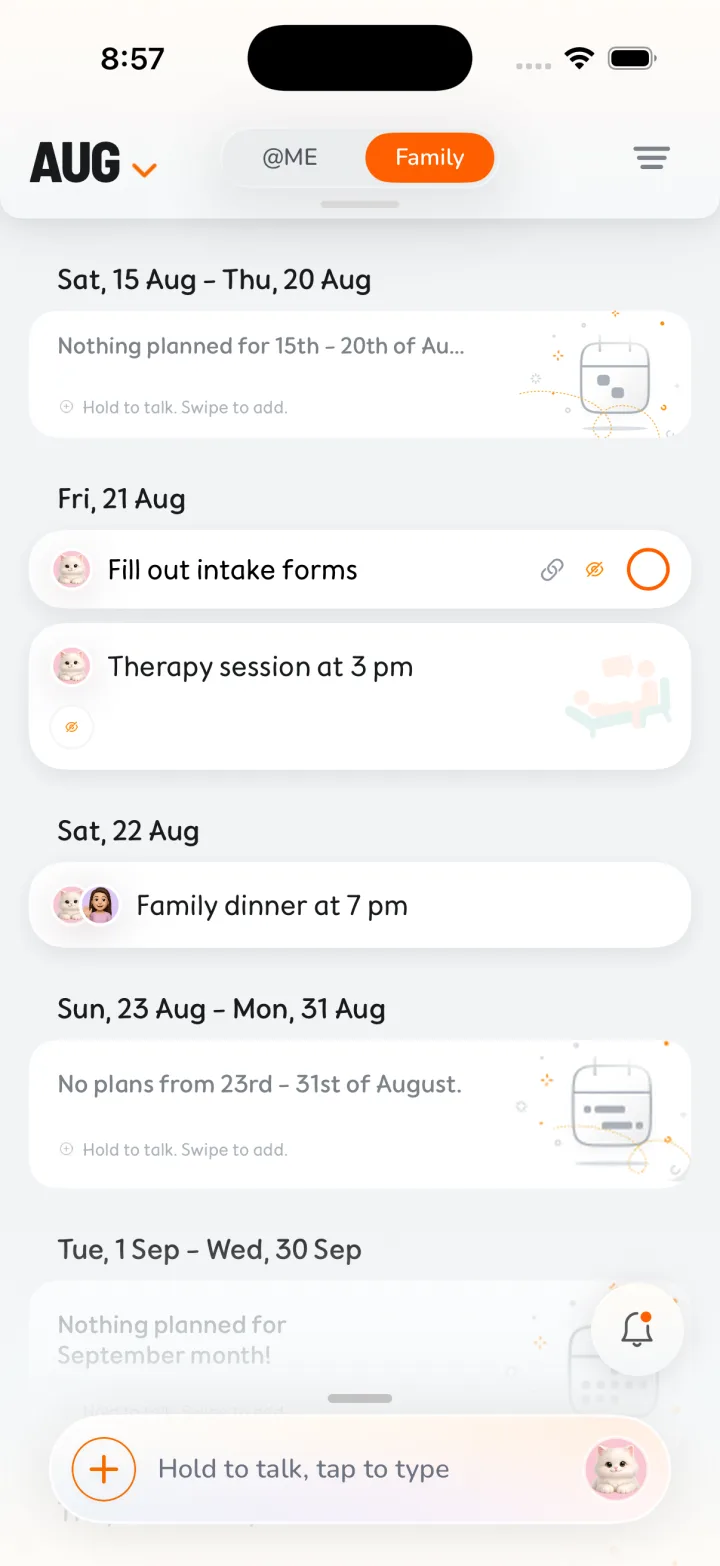
Privacy should still be a household rule, not just a toggle. Confirm who can see a sensitive item before adding details, and use direct communication for urgent changes that need acknowledgment.
Notifications Are Per Device
Each person must make a notification choice on their own phone. Enabling notifications on iPhone does not enable them on Android, and the reverse is also true. Android 16 showed KIN's notification permission as granted in our test, but that setting alone does not prove a particular alert was delivered.
After joining:
- allow notifications in KIN's onboarding or the phone's system settings;
- create a harmless reminder;
- confirm the reminder time and the device time zone; and
- check the operating system's focus, battery, and notification settings if an alert does not appear.
Decide What Belongs in KIN
A useful household rule is:
If a plan affects another family member, record the family-facing version in KIN.
Keep work and private personal calendars elsewhere if that fits your household. Use KIN for pickups, school and activity commitments, appointments, family travel, shared reminders, and household to-dos.
Because external calendars do not sync into KIN, avoid ambiguous duplicate copies. Choose which copy is authoritative and assign someone to update the KIN entry when the source plan changes.
Troubleshooting
The invite code does not verify
Confirm all six characters, ask the inviter to check the intended member, and generate a fresh invite if the code expired or was revoked. A code can only join the family member it was created for.
The phones show different families
Open Manage Family on both devices and compare the family name and member list. If the Android user created a separate family instead of choosing Have a Code, restart the join process with the intended invitation.
A shared change is not visible yet
Confirm both phones are online, reopen the timeline, and verify the event is assigned to the expected family members. If only one person should see it, check whether the event was intentionally marked private.
Times differ
Check each phone's time zone and KIN's time-zone preference. Review the displayed local time after creating or editing an event, especially when family members are traveling.
An external calendar event is missing
This is expected: KIN does not import or sync Apple Calendar, Google Calendar, Outlook, or other external calendars. Add the family-facing plan to KIN manually and decide who owns later corrections.
KIN is currently available on iPhone and Android, not as a web, desktop, iPad, Mac, Windows, or Apple Watch app. For a product overview, see KIN for mixed iPhone and Android families. For the household rollout, continue to how to set up a shared family calendar.
Continue with the mixed-device setup
Share one family calendar across iPhone and Android
See how household members can use the same family timeline without standardizing on one phone platform.
Explore the iPhone and Android setup →